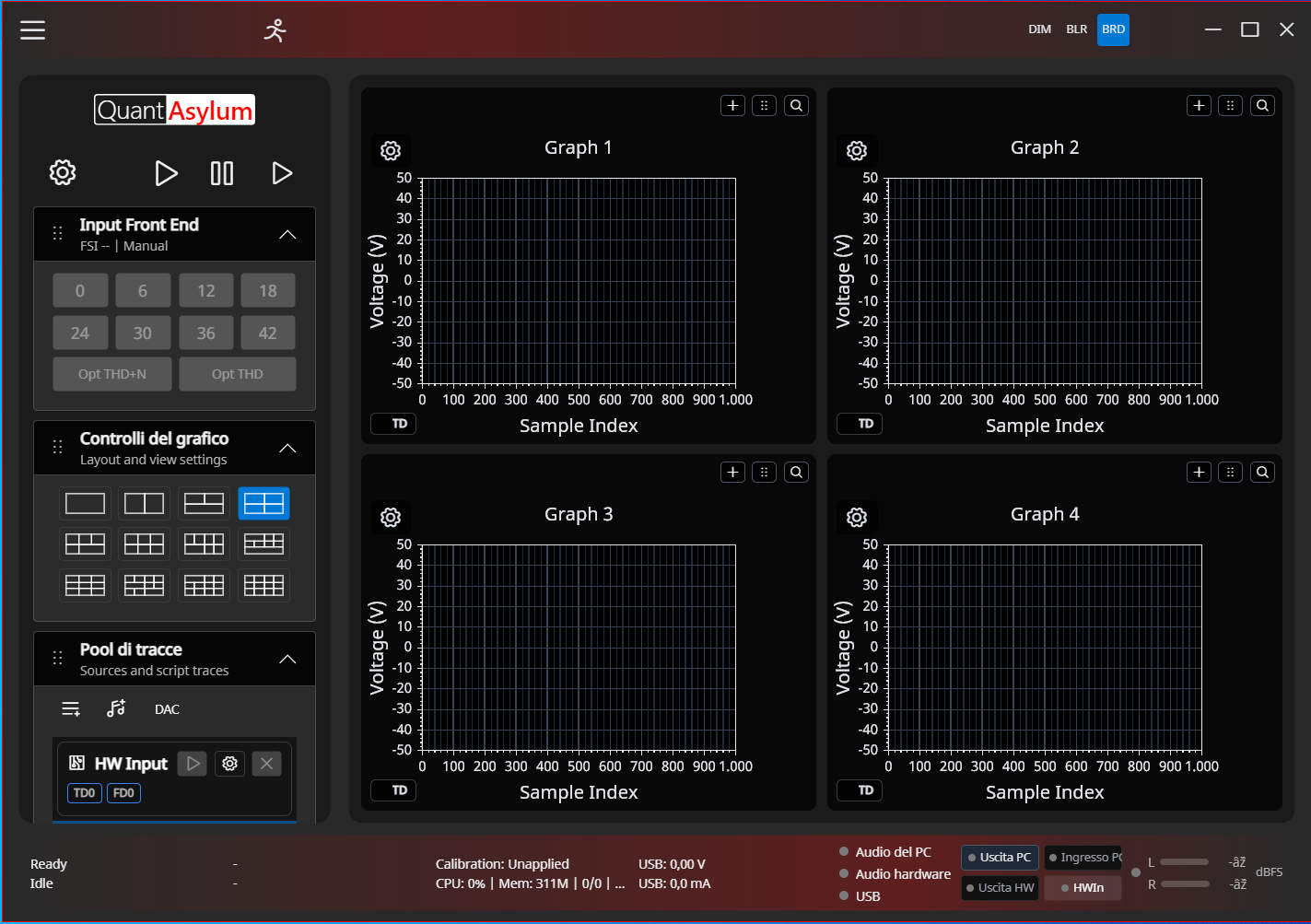
The next version of Qa40x is getting close, and it would be a big help if those on non-PC platforms could try and report what they see. The zip is located HERE.
1. Download and Unzip
Download the zip and unzip. There’s no installer.
2. Running
For Windows, you can go into the unzipped directory and run qa40x.exe directly.
For Linux/Mac, you will need the dotnet 8.0 runtime installed. On Ubuntu, for example, that looks like this:
sudo apt-get install -y dotnet-runtime-8.0
With the dotnet runtime installed, you can switch to the unzipped directory and run the app with:
dotnet Qa40x.dll
You might get a Skia compat issue (The version of the native libSkiaSharp library (88.1) is incompatible with this version of SkiaSharp.). If so, let me know.
Next, watch for an issue with libusb. If you see:
libusb-1.0 was not found
install the Linux system package:
Ubuntu / Debian
sudo apt install libusb-1.0-0
Fedora
sudo dnf install libusb1
Arch
sudo pacman -S libusb
Unversioned Symlink Issue
LibUsbDotNet may look for libusb-1.0.so while the OS only provides libusb-1.0.so.0.
Check what exists:
find /lib /usr/lib -name 'libusb-1.0.so*' 2>/dev/null
If libusb-1.0.so is missing, either install the development package:
sudo apt install libusb-1.0-0-dev
or create the symlink manually, for example on Ubuntu x64:
cd /lib/x86_64-linux-gnu
sudo ln -s libusb-1.0.so.0 libusb-1.0.so
sudo ldconfig
3. Linux: USB Device Not Found
If the log shows:
Usb.Open failed: Usb.Open(): Device Not Found.
then the native USB library is loading correctly, but Qa40x cannot find the analyzer.
The current code looks for this USB VID/PID:
16c0:4e39
Check detection with:
lsusb
lsusb -d 16c0:4e39
If nothing is returned, check:
- The QA403 is connected
- The device is powered
- The cable is good
- The device is not attached to another host, VM, or container
- The firmware is exposing the expected VID/PID
4. Linux: USB Permissions
If lsusb -d 16c0:4e39 shows the device but the app still cannot use it, add a udev rule:
sudo tee /etc/udev/rules.d/99-qa403.rules >/dev/null <<'EOF'
SUBSYSTEM=="usb", ATTR{idVendor}=="16c0", ATTR{idProduct}=="4e39", MODE="0666"
EOF
sudo udevadm control --reload-rules
sudo udevadm trigger
Then unplug and reconnect the device.
5. Linux: Useful Diagnostics
Check whether the USB device is visible:
lsusb -d 16c0:4e39
Check libusb sonames:
find /lib /usr/lib -name 'libusb-1.0.so*' 2>/dev/null
Inspect the deployed Skia native library:
find . -name 'libSkiaSharp.so'
Run the app:
dotnet Qa40x.dll
Running the App
With versions and usb issues addressed, the app should come up in one of nine languages. English (en), Deutsch (de), Espanol (es), Francais (fr), Italiano (it), Japanese (ja), Korean (ko), Portugues (Brazil) (pt-BR), Chinese (Simplified) (zh-Hans). You can force a language via the command line. For example,
dotnet Qa40x.dll --lang fr
will force French.
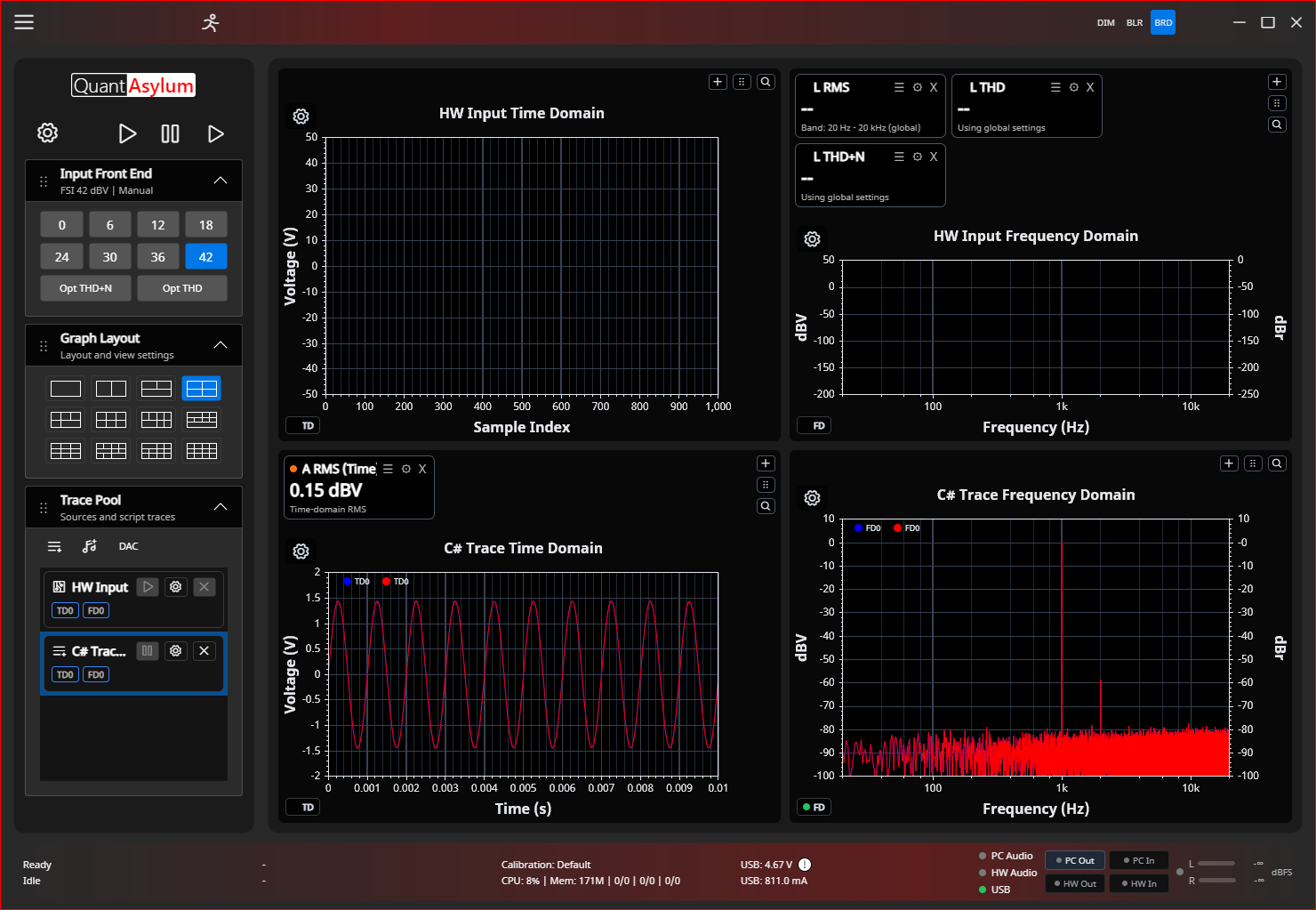
The app should come up looking as below:
TASK:
Confirm app will show the selected language. The language may be spotty as localization is mechanical and not all the way up to date. The key is if you see SOME strings rendering.
Trace Activity
In the two lower windows, you’ll should see activity. The lower two windows are connected to a C# trace generator that runs and updates every 250 mS or so. This can be turned off by locating the C# Trace Generator tile, and clicking the gear.

That will open the generator properties:

Uncheck the Loop Generation and hit Apply. The updates should stop. Close the app and restart it.
TASK:
Confirm on re-start that the generator is no longer autogenerating. This means that the app has persisted settings successfully.
PC Audio Generation
Click the global settings gear:

Select the PC Audio Tab, select your DAC output (ADC isn’t yet connected) device and click the test button. You should hear a one second tone.

TASK
Confirm you can generate a tone on your local hardware.
Connecting the QA403 Hardware
Next, plug in the QA403 if not already. The lower left should show Idle (it currently shows Idle if the QA403 is recognized or not).

near the top of the app you’ll see a series of play/pause buttons:

Press the rightmost button. This will start bursted activity with the analyzer and you’ll see time domain display in the upper left and freq domain displayed in the upper right. To change input levels or experiment with autoranging, do the following: Stop the analyzer USB activity. Right click global settings gear, click on Generator tab, set the sine generation to whatever you want (greater than -20 dBV). The select the Opt THD+N or Opt THD. Connect and disconnect the loopback cable to initiate with the analyzer running, and also start and stop the acq. Depending on the button you select the system will automatically optimize for best THD or THDN as incoming levels change.
That’s it for this phase. The tasks were:
- Confirm localization appears
- Confirm file system persistence
- Confirm local tone generation
- Confirm USB operation (should be nearly rock solid)
Please leave your results here (include platform (Win/Mac/Linux + OS ver) or send mail to support at quantasylum.
Thanks, Matt